How to put all your incoming messages in one unified dashboard (it’s easy!)
If your workday feels like a high-stakes game of notification whack-a-mole, you aren’t alone. Between Slack channels buzzing, Microsoft Teams pinging in the background, multiple email accounts open, and mobile messages cluttering your phone, simply checking if someone needs you takes up half your morning.
You don’t need more communication tools! You need a single, unified dashboard that aggregates all those incoming messages into one central cockpit and then gives you complete control over when you actually see them.
Here’s how to build one in about 20 minutes.
The strategy: Use a catch-all app
The cleanest, most reliable approach for most people is the aggregator app method. Rather than messing with complex webhooks or custom scripts, you wrap all your web-based messaging apps into a single desktop window with strict notification filters.
Setting up your unified dashboard
1.Prune your active channels
Before pulling everything into one place, declare notification bankruptcy on channels you don’t actually need in real-time. Turn off “channel joined” alerts in Slack, mute low-priority Teams channels, and unsubscribe from non-essential email lists. If a channel doesn’t require direct action from you today, it shouldn’t be triggering real-time alerts.
2.Choose and install a dedicated workspace app
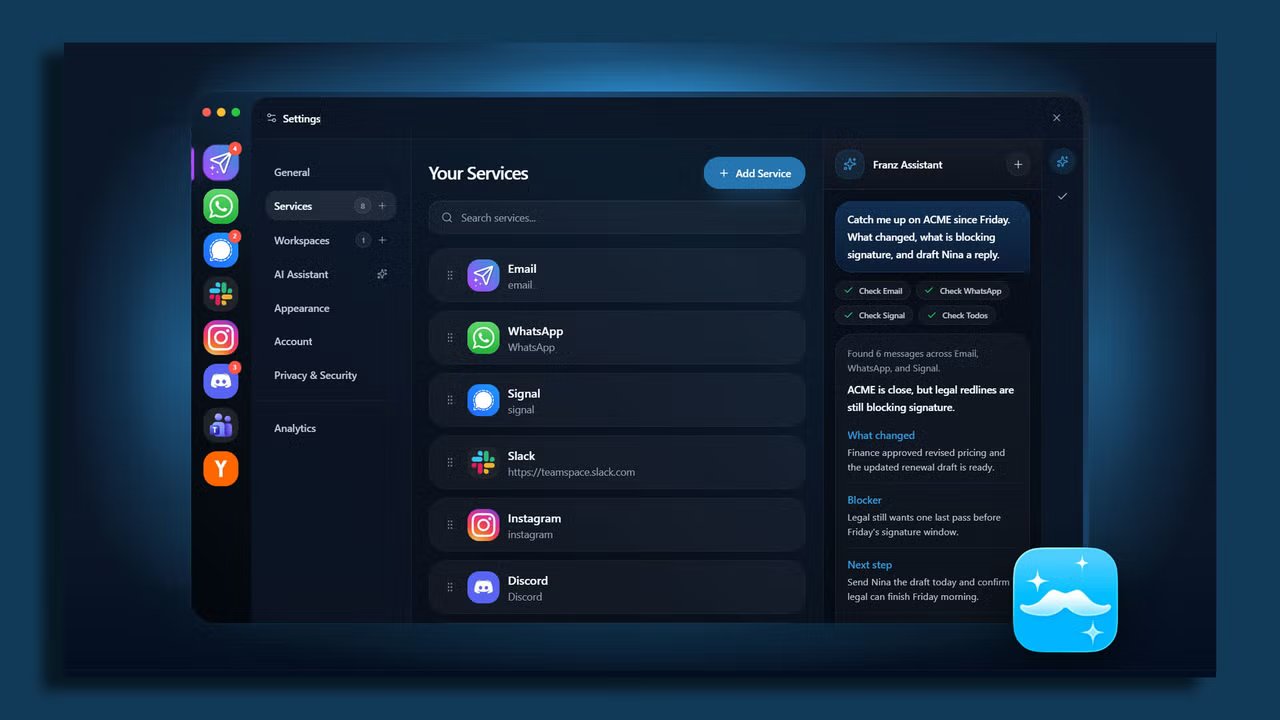
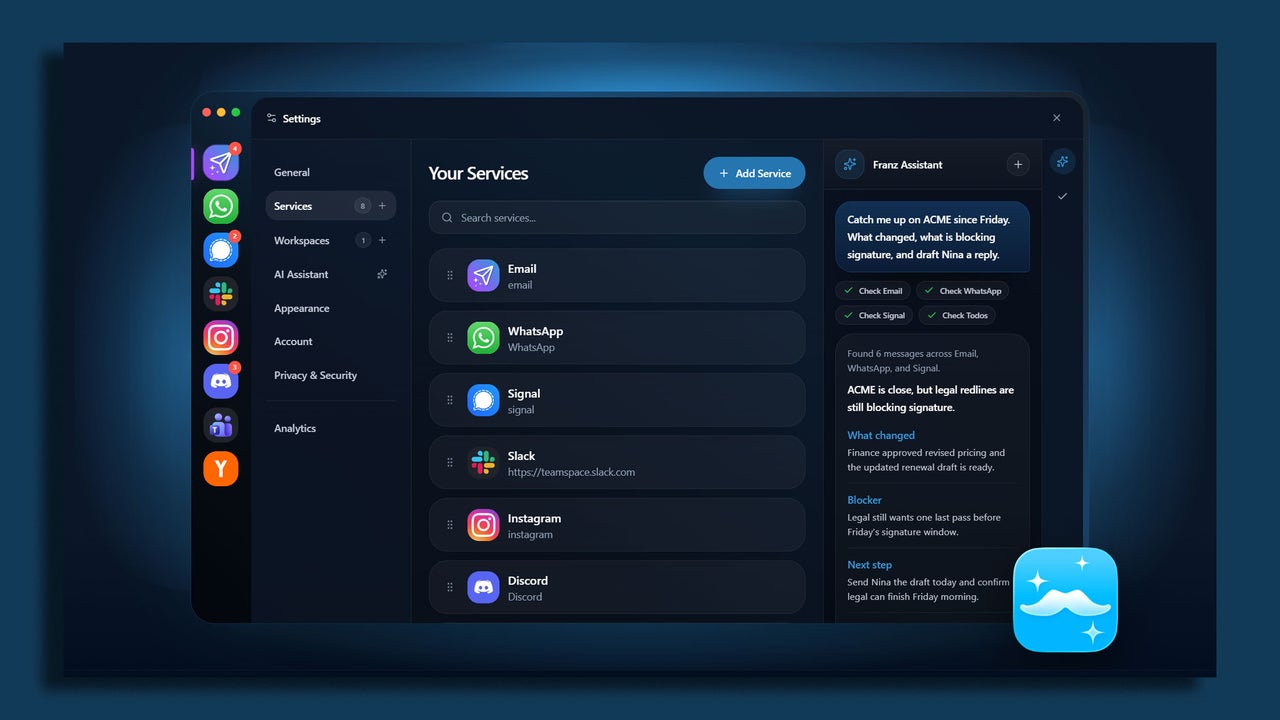
Download a specialized workspace aggregator like Rambox, Franz, or Shift. All three have free versions with enough features to get you started.
These apps let you run communication apps inside a standalone, organized window. Instead of keeping eight browser tabs open that hog system memory, you get one clean interface with dedicated app profiles.
3.Consolidate SMS and mobile messaging
If SMS or mobile-first apps like Signal and WhatsApp are part of your work day, pair them to your desktop setup. Mac users can leverage native Messages syncing, while Windows users can hook up Google Messages for Web or Phone Link. Add these web endpoints right into your workspace app alongside your work chat apps.
4.Kill badge counts and set unified focus hours
I know it sounds blasphemous, but turn off all red unread badge counters inside your aggregator app. Badges are designed to trigger panic!
Instead, configure custom notification schedules within your workspace app so alerts only land during designated check-in windows (for example, at 10am and 3pm).
Optional: Create a “VIP-only” emergency fail-safe
The biggest fear people have when consolidating messages is missing a genuine emergency. The fix isn’t keeping every app open on a secondary monitor, it’s creating a dedicated emergency bypass.
Set up a specific keyword alert in Slack and Teams (like your name or “URGENT”) to trigger sound alerts, while muting all general channel activity.
For email, create a simple rule that pushes desktop pop-up notifications only if the message comes from your direct manager or key clients.